AI Invoice Scanner for Freelancers: Extract Data from PDFs and Photos in Seconds
A practical guide to AI-powered invoice scanning for freelancers and small businesses: what to look for in invoice scanning software, how OCR handles PDFs and photos, and where the data should actually end up.
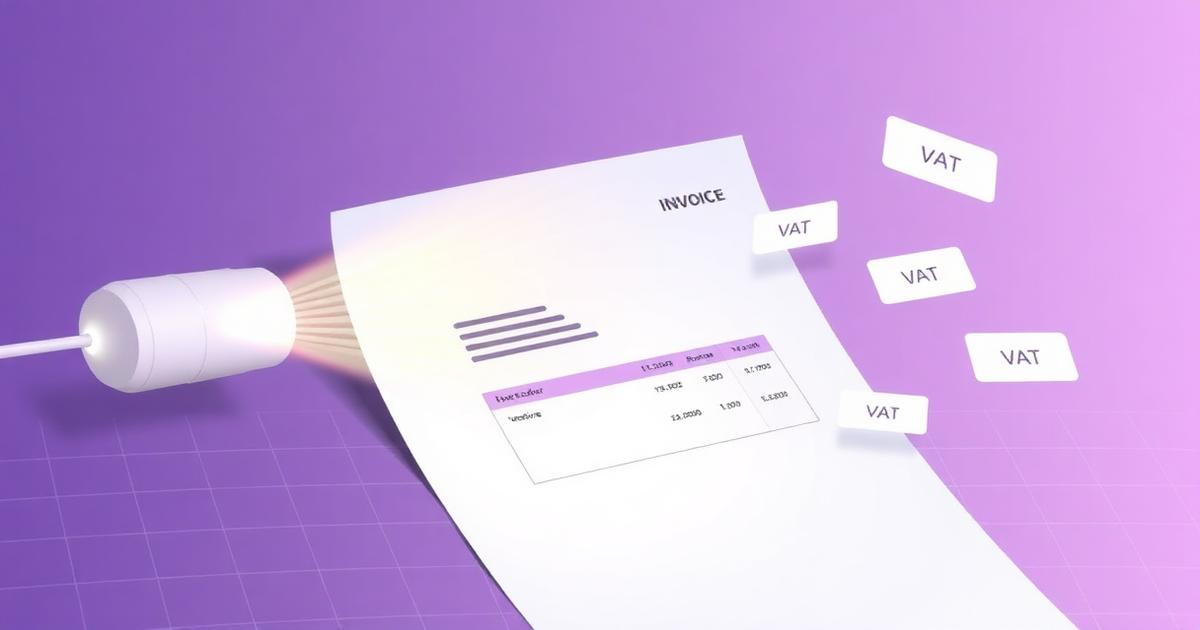
If you run a business by yourself, invoices arrive faster than you can file them. Some come as tidy PDFs from SaaS vendors. Others come as phone photos of a paper receipt from a coffee meeting. A few land as scanned attachments in an email thread you already forgot about.
The problem isn't the invoices. It's what you're supposed to do with them: extract the numbers, put them into your books, and remember what each one was for. Done by hand, it's dull and error-prone. Done well by software, it disappears into the background.
That's what an AI invoice scanner is for.
What an AI invoice scanner actually does
At its core, invoice scanning software reads a document and returns structured fields. A modern tool combines two things:
- OCR turns the pixels of a PDF or photo into raw text.
- AI reads that text with context. It knows what an invoice looks like, which number is the total, which is the tax, and which line is the vendor.
The output is a filled-in record — vendor, date, amount, currency, tax, category — that you can accept, tweak, or reject. Instead of typing an invoice, you review one.
What separates a good invoice scanner from a mediocre one
Not all "AI invoice scanners" do the same job. When you evaluate one, check for:
1. Real field extraction, not just text dump. If the tool returns a page of plain text, you're still doing the work. You want distinct fields: vendor, date, net, tax, total, currency, invoice number.
2. Currency-aware amounts. Freelancers get paid and pay in multiple currencies. Any amount without a currency attached is a bug waiting to happen. Good scanners keep the original currency and never silently convert.
3. Correct handling of discounts and tax. A discount line is not tax. A net amount is post-discount and pre-tax. Cheap tools confuse the two and quietly break your books. Look for a tool that treats these as distinct concepts.
4. Photos and PDFs both. Sometimes an invoice is a clean PDF from Stripe. Sometimes it's a wrinkled receipt from a taxi. The scanner should handle both.
5. Editable output. No OCR is perfect. You want to see what the AI extracted, correct anything wrong, and save. The original file should stay attached to the record.
6. Somewhere useful for the data to land. Extraction is only half the value. The other half is what happens next — does the invoice become a categorized expense in your books, or does it just sit in a folder?
Why this matters more for freelancers than for corporate AP teams
Enterprise accounts payable software has done invoice OCR for years, but it's built for large volumes and specialized roles. For a business of one, that toolset is overkill — expensive, over-featured, and disconnected from the way you actually work.
What you need is different:
- Upload one invoice at a time, from anywhere.
- Get the fields you need with almost no clicking.
- Have the invoice show up in your expense tracking and reporting without a separate import step.
- Keep the file for tax and audit purposes.
A freelance-focused invoice scanner meets you at that scale.
Where Money Magician fits
Money Magician includes an AI invoice scanner as part of the core Expenses workflow. You drop in a PDF, JPG, or PNG and it returns the structured record — vendor, date, net, tax, total, currency, and a suggested category. Every field is editable. The original file is stored alongside the record. And the extracted invoice flows into the Expenses tab, the Dashboard, and your reports without a separate import.
The rest of the app is built to make that data useful — categorization, tagging, bank reconciliation, and multi-currency-aware reporting — so scanning an invoice isn't the end of the workflow, it's the start.
If you already juggle invoices from a mix of vendors, give it a try on the free plan. And if you're comparing dedicated scanners against broader expense platforms, our post on Money Magician vs. Expensify, Pleo & Zoho Expense walks through where each type of tool fits.
The takeaway
Invoice scanning stopped being a novelty a while ago. What matters now is what happens after the scan — whether the extracted data lands somewhere structured, editable, and useful for tax time. Pick the tool that closes that loop, not just the one that reads the file.
Frequently Asked Questions
What is an AI invoice scanner?
An AI invoice scanner is software that reads invoices — whether they arrive as PDFs, email attachments, or phone photos — and extracts the structured fields you actually need: vendor, invoice number, date, line items, net amount, tax, currency, and total. Instead of typing those fields by hand, you upload the document and the AI returns a filled-in record you can review and save.
How does invoice scanning software work?
It combines OCR (optical character recognition) to turn pixels into text with a language model that understands invoice structure. The OCR layer handles both digital PDFs and photos of paper receipts; the AI layer figures out which number is the total, which is VAT, which line is the vendor, and which currency you were charged in — even when the layout is unusual.
Does it work with photos of paper receipts?
Yes. A good invoice scanner accepts JPG or PNG photos taken with a phone, as well as PDFs generated by billing software. Lighting and angle affect accuracy, so a flat, well-lit shot works best — but modern OCR can recover from imperfect captures more often than not.
What fields should an invoice scanner extract?
At minimum: vendor name, invoice date, invoice number, currency, net amount, tax amount, total amount, and a description or category suggestion. Bonus fields worth having are due date, payment terms, and line items. If the tool only returns a total, you'll still be typing most of the invoice by hand.
How accurate is AI invoice OCR?
For clean digital PDFs, top tools get most fields right on the first pass. Photos and unusual layouts drop accuracy, which is why a good workflow always includes a quick review step before saving. The right question isn't 'is it 100 percent accurate?' — it's 'does it save me more time than it costs me to check?'
How is this different from a receipt scanner app?
Receipt scanner apps typically focus on capture and storage — snap a photo, keep the image. An invoice scanner goes further: it extracts structured data and pushes it into your accounting or expense records, so the invoice becomes a searchable, categorized transaction rather than another file in a folder.
Can I use an invoice scanner for VAT and tax reporting?
Yes, if the tool captures currency, tax amount, and tax rate as separate fields. That structure is what makes VAT returns and year-end reports possible without re-reading every invoice. Look specifically for tools that keep the original currency intact instead of silently converting everything to one base currency.
What happens if the AI reads a field wrong?
Every field should be editable. A trustworthy scanner shows you what it extracted, highlights uncertain fields, and lets you correct anything before saving. The document itself is preserved so you can always double-check against the original PDF or photo.
Does Money Magician scan invoices?
Yes. You can upload a PDF, JPG, or PNG invoice and the AI extracts vendor, date, amounts, tax, currency, and a suggested category. Every field is editable, the original file is stored alongside the record, and the resulting expense flows straight into your Dashboard and reports.