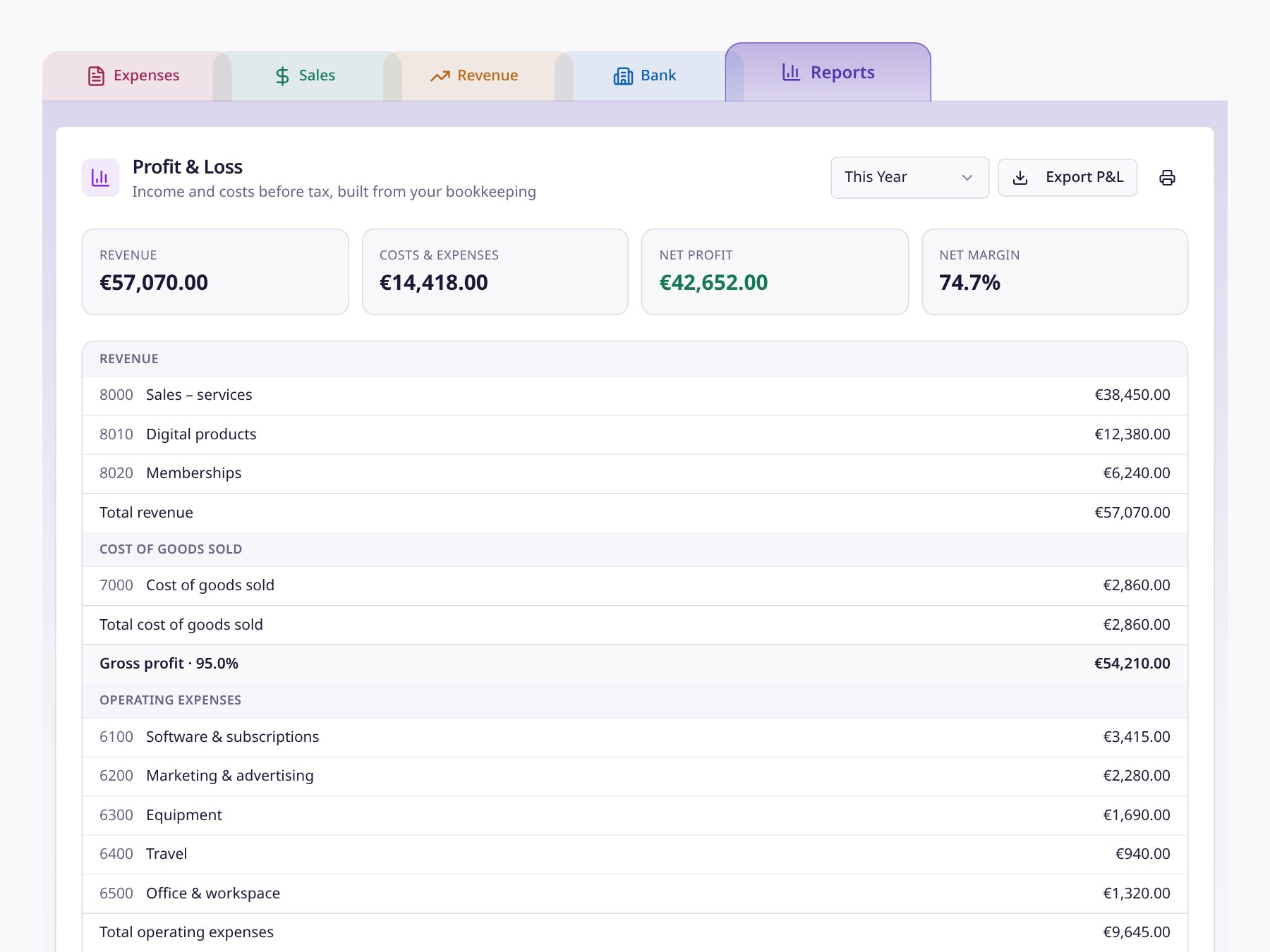
Money Magician Bank Tab Updates: Clearer References, More Transaction Details
See actual Wise payment references, open transaction details, move imported payments to the right account, and use familiar date filters in Money Magician's updated Bank tab.
A bank payment is more useful when you can tell what it was for. An amount and a label such as "transfer" tell you money moved, but not whether it paid a supplier, covered a subscription, or settled an invoice.
We've updated Money Magician's Bank tab to make that context easier to find. The changes apply to both imported bank transactions and Wise-synced payments: clearer references in the list, a dedicated details view, and more convenient ways to manage imports and date ranges.
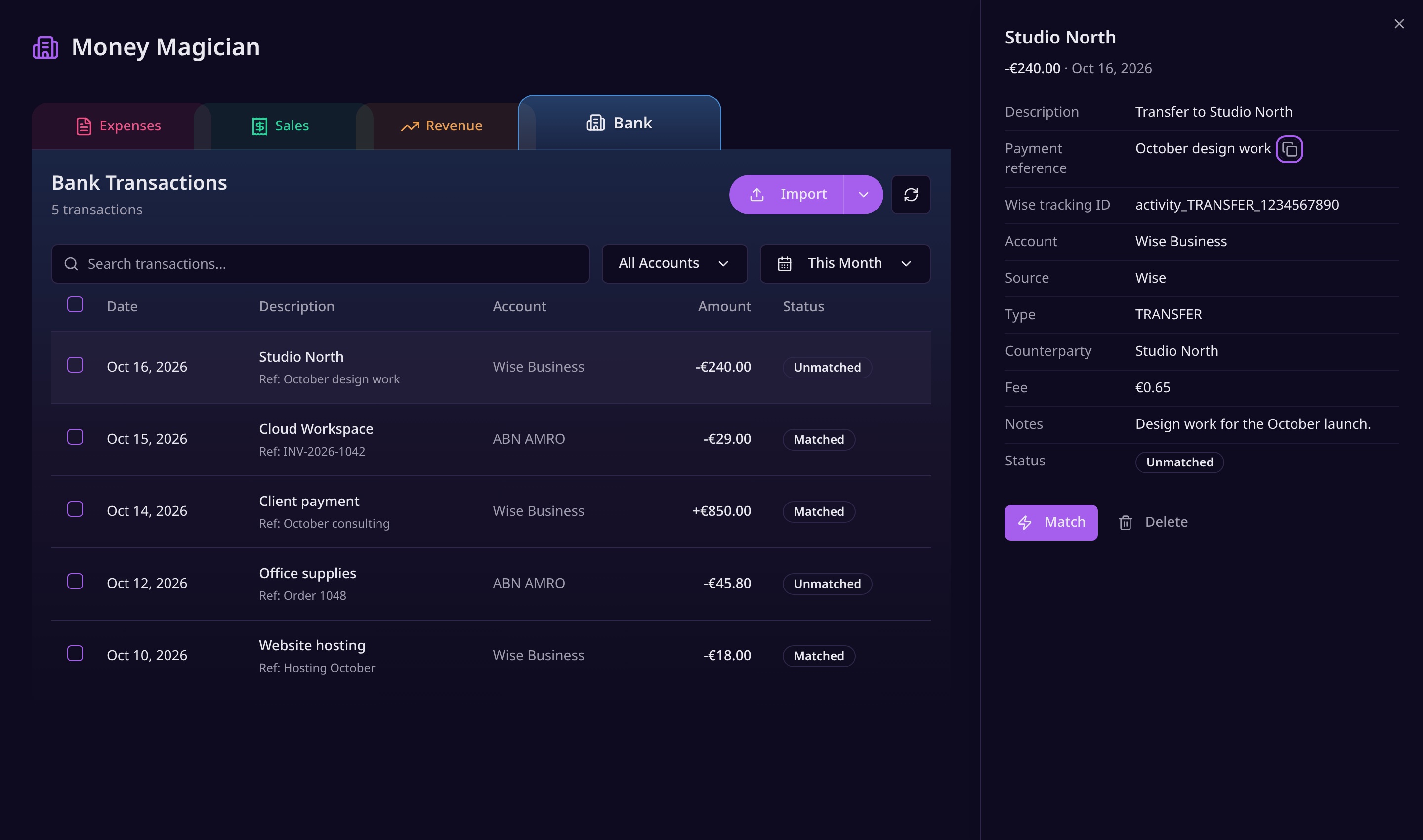
Cover rendered with Money Magician’s actual tabs, Bank controls and transaction-details panel, using fictional transactions and example amounts.
Payment references you can actually recognise
Wise transactions keep their existing description, such as a transfer type, merchant or sender. When a payment reference is available, an additional Ref: line now appears underneath.
That distinction matters. A note such as "October design work" tells you why you made a payment. A Wise activity or tracking ID identifies a record, but does not explain the purchase. We now treat these as separate pieces of information rather than presenting a tracking ID as though it were your transfer note.
For imported bank transactions, the list shows the bank reference when available, falling back to the payment remark extracted from the description if there is no separate reference.
Long references are shortened in the list so rows stay readable. Open the details to inspect the full available reference. If a transaction has no reference, there is no empty extra line.
Wise notes are retrieved during syncing
You do not need to open each transfer to trigger a lookup. Money Magician retrieves the actual Wise transfer reference as part of the sync, when Wise makes it available.
Not every transfer has a note, and an optional reference lookup can fail. In those cases, the financial sync continues: missing context should not prevent a payment from appearing. This update does not change transaction amounts or existing matches.
Click or tap for the full transaction story
Click or tap a transaction's description to open its details. On desktop, a panel slides in from the right; on mobile, the details open in a bottom sheet.
Instead of squeezing everything into a table row, the details show the information available for that payment:
- The full description and payment reference, with a copy button for the reference.
- The amount, currency and date.
- The account, source and transaction type.
- The counterparty and merchant category, when available.
- Fees and currency-conversion information, when already available in the transaction data.
- Your accounting category and notes.
- Its match status and a link to the invoice if one is connected.
Wise tracking IDs have their own label in this view, separate from the payment reference.
You can also use the existing Match, Unmatch and Delete actions from the details. Opening a description does not select the row or trigger its related-item expansion. Checkboxes, bulk actions and the existing row expansion remain separate.
Imported a statement into the wrong account? Move the batch
It is easy to import a credit-card statement while the wrong account is selected. Fixing that should not require deleting everything and starting again.
After an import, the recent-import banner lets you move the imported batch to another account. It also offers Undo import, with confirmation before the imported transactions are permanently deleted.
For older imports, select the imported bank transactions and use Move to Account. This works even when those transactions are no longer part of the recent-import banner.
Wise-synced transactions are excluded from this move action: their account is determined by the Wise sync, not by the account you choose for an import.
Familiar date controls across Bank and Expenses
The Bank tab's date picker now follows the same design as Expenses, including calendar pop-ups for a custom start and end date. That means less switching between different controls when you compare spending with bank payments.
The shared Year to Date option uses Money Magician's rolling 12-month period, while This Year runs from January 1 to today. For a specific reporting period, choose Custom Range and set the dates directly.
Less detective work, not a different matching system
These updates are about making the evidence behind a payment easier to see. They do not introduce a new matching algorithm or turn a payment reference into proof that an invoice is paid.
You still decide whether a suggested match makes sense. The difference is that you can now inspect the reference, source, notes and linked invoice without losing your place in the transaction list.
Open your Dashboard, choose Bank, and try opening a Wise transfer and an imported payment. For more background on connecting bank payments to your records, read our bank reconciliation guide or explore Money Magician's banking tools.
Frequently Asked Questions
Does Money Magician show the note attached to a Wise transfer?
When Wise makes it available, Money Magician retrieves the transfer's payment reference during syncing and shows it alongside the existing description. Wise tracking IDs are labelled separately in transaction details; they are not payment notes. An unavailable reference does not stop the financial sync.
How do I open a bank transaction's details?
Click or tap its description in the Bank tab. A side panel opens on desktop and a bottom sheet on mobile, showing the available description, reference, account, source, category, notes and match information.
Can I move imported transactions to a different account?
Yes. After an import, the recent-import banner lets you move that batch to another account. You can also select previously imported bank transactions and use Move to Account. Wise-synced transactions are excluded because their account comes from Wise.