Meet the Reports Tab: Your Profit & Loss and Balance Sheet, Without the Accounting Headache
Money Magician's new Reports tab turns the expenses, sales and bank payments you already track into a Profit & Loss statement and a Balance Sheet — simple, fast and readable for creators and freelancers.
Most creators and freelancers don't start a business because they love bookkeeping. Yet sooner or later someone asks the big questions: Did I actually make a profit this year? What does my business own, and what does it owe?
Until now, answering them usually meant waiting for your accountant, or wrestling with a spreadsheet. With the new Reports tab, Money Magician answers both from the data you already keep.
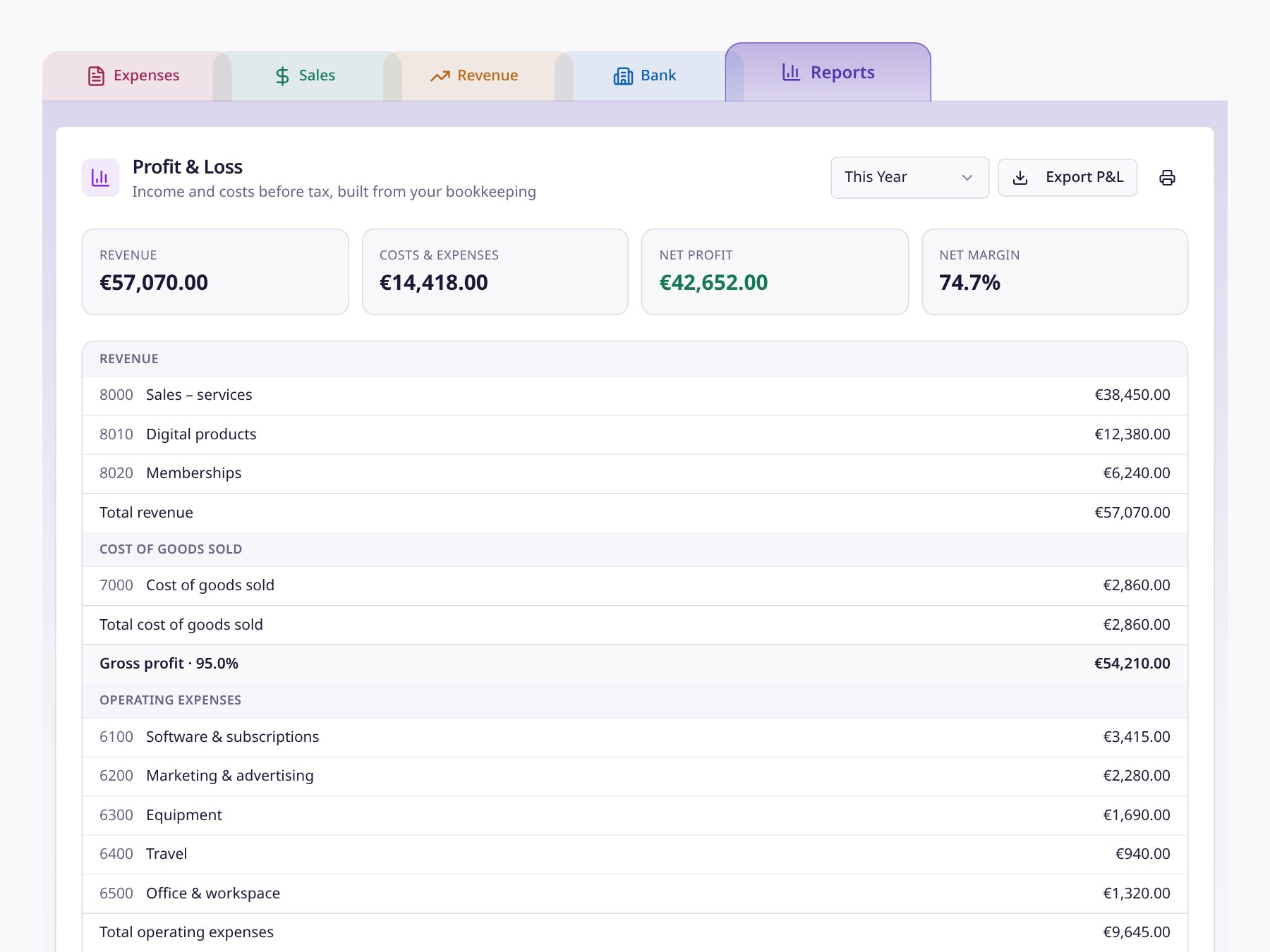
Cover rendered with Money Magician's actual Reports tab and Profit & Loss report in the light theme, using fictional example figures.
Our goal: simple, fast and accessible
We built Reports around one idea: you shouldn't have to learn accounting to understand your own business.
- Simple. No journals to fill in, no debits and credits to decide. You keep scanning invoices, creating sales and matching bank payments.
- Fast. Reports appear in seconds, for any period you pick, whenever you want them.
- Accessible. Plain labels, clear totals and a quick summary at the top, so the important number is never buried.
Behind the scenes Money Magician still does proper double-entry bookkeeping. You just don't have to see it unless you want to.
The Profit & Loss: did I make money?
The Profit & Loss statement shows what came in and what went out over a period.
At the top you'll see four quick numbers: revenue, costs and expenses, net profit and net margin. Below that is the full statement:
- Revenue, from your sales invoices and connected Stripe or Gumroad payments
- Cost of goods sold and your gross profit
- Operating expenses, grouped by the categories you already use
- Payment and bank fees
- Net profit, the bottom line
Pick This Year, a quarter, the last 12 months or your own date range. Expenses without a category don't disappear; they show up as a clear "Uncategorized" line, and a note tells you how many there are so you can tidy them up.
The report shows amounts before VAT or sales tax, so your profit isn't inflated by tax you pass on. Working in more than one currency? Each currency gets its own statement, and nothing is converted behind your back.
Need to share it? Export P&L gives you a spreadsheet with separate columns for individual lines and totals, and the file name includes the period. You can also print it.
The Balance Sheet: what do I own and owe?
Right below the Profit & Loss sits the Balance Sheet: a snapshot of your business on any date you choose.
- Assets: bank and Wise balances, money customers still owe you, and things like equipment or software you've built
- Liabilities: unpaid supplier bills, tax to pay and other debts
- Equity: what's left over, including your profit from earlier years and from the current year
A small badge shows whether everything is in balance, meaning assets equal liabilities plus equity. Because the Balance Sheet uses the same bookkeeping as the Profit & Loss, this year's profit flows straight into it.
Opening balances, set up once
Your business existed before you started using Money Magician, so the Balance Sheet needs a starting point. Under Opening balances & assets you can add:
- a start date for your books
- your starting bank balances, receivables and debts
- existing assets, with a yearly write-down rate
- dated adjustments, if your accountant hands you corrections
Everything stays editable. Write-downs are calculated automatically from the day after you bought an asset, so your opening figures match last year's closing statement.
Your accountant gets the same numbers
The Profit & Loss, the Balance Sheet and the General Ledger Journal export all come from the same bookkeeping. Whatever you see in Reports is exactly what your accountant receives, with no separate calculations that drift apart.
That means fewer back-and-forth emails, and an accountant who spends time advising you rather than retyping your figures.
Try it
Open your dashboard and click the Reports tab. If you already track expenses and sales, your Profit & Loss is ready. For the Balance Sheet, add your opening balances once. Not sure where something goes? Ask M., our Ask M. assistant. It knows the new reports too.
Frequently Asked Questions
Do I need to know accounting to use the Reports tab?
No. You keep adding expenses, sales and bank payments the way you already do. Money Magician does the bookkeeping behind the scenes and shows the result as a Profit & Loss statement and a Balance Sheet in plain language.
Does the Profit & Loss include VAT or sales tax?
No. The Profit & Loss shows income and costs before tax. For your VAT or sales tax return, keep using the Sales, Revenue and Expenses exports.
Why does the Balance Sheet ask for opening balances?
A Balance Sheet shows everything your business owns and owes on a given day, including what existed before you started using Money Magician. You add those starting amounts once, such as bank balances, existing assets and debts, and you can edit them later.
Will my accountant see the same numbers?
Yes. The Profit & Loss, the Balance Sheet and the General Ledger Journal export are all built from the same bookkeeping, so the three always agree.